
Compliance / Requirement Groups
Introduction
Requirement Groups consist of one or more requirements that people linked to the Requirement Group must meet in order to show as compliant. A requirement can be either a document, a completed record or training.
It is important to note that while people can be directly linked to, the power of HR Manage lies in the ability to automatically link people to requirement groups based on their job, location, and so on. These can then all be combined to generate our famous gap reports.
Embedded in other editors
The Requirement Group designer is embedded in other editors for easy integration. Each editor represents a point where requirements can be defined so that any person linked to that entity, automatically needs to meet the requirements linked to that entity.
Here are some of the editors that embeds the Requirement Group Designer:
- Job Title
- Position
- Location (0, 1, 2 and 3)
- External Company
- Orgranisational Unit (coming soon)
- Security Group (coming soon)
Requirement Group Editor
Requirement Group Details tab
The tab contains basic details for storing the group in the library.
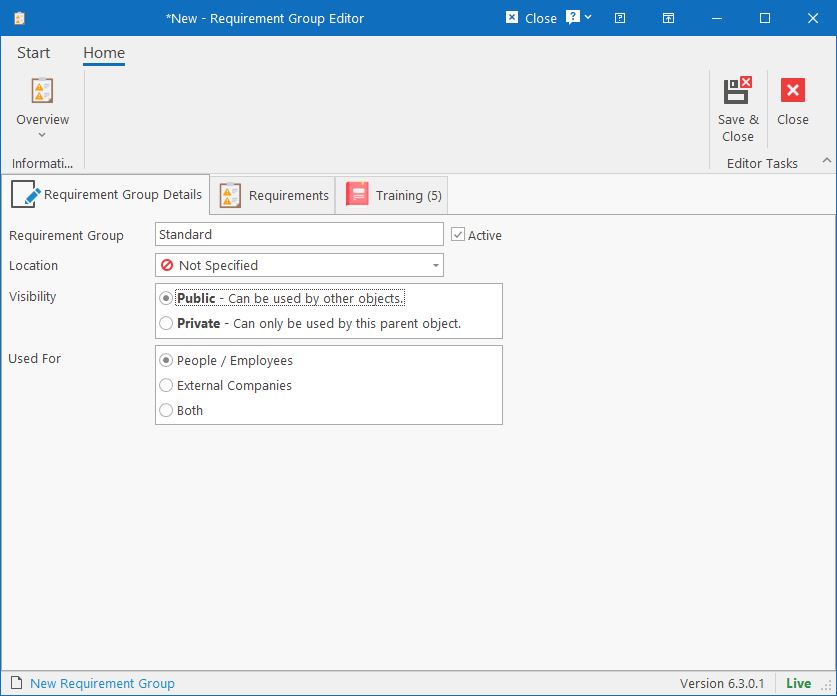
- Requirement Group: Specify a name for identifying the group in the library.
- Visibility: Only applicable when creating a requirement group from within another entity like a Location or Job Title. This indicates if the requirement group can be reused by other entities as well or if it is exclusively to be used by the entity that created it.
- Used For: Since compliance can be applied to both People and Companies, specify what the purpose is for the requirement group. Companies will have very different requirements than people, so based on this, requirement groups will be filtered out when browsing for one from an entity. It will also determine which requirement types are available for inclusion in the group.
Requirements tab
This tab specifies which requirements and documents need to be loaded on the employee file or company in order to be compliant.
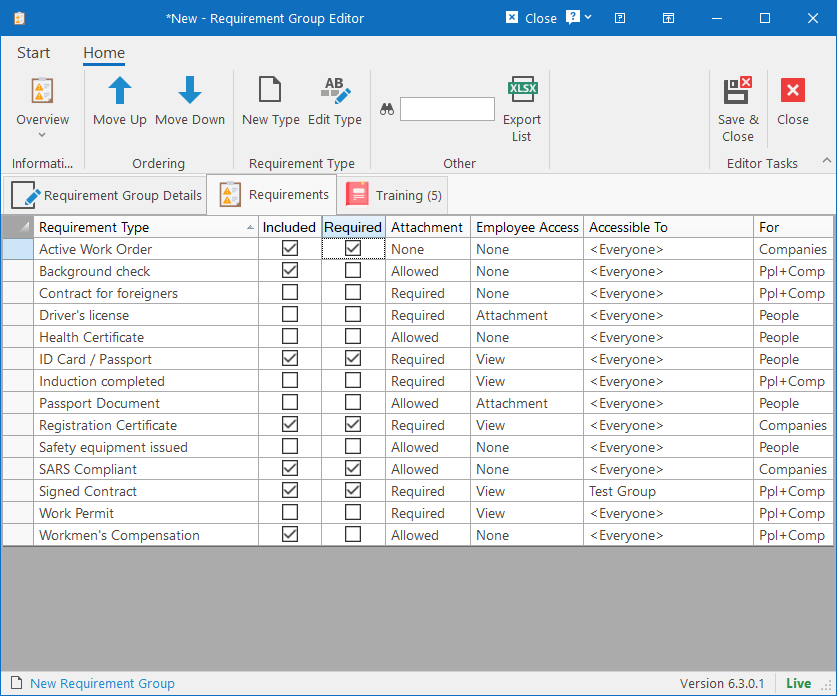
The entire lookup of requirement types will be listed in the grid so that you can simply include the types that are applicable to the group and specify which ones are mandatory. The list can be filtered by entering a part of the name in the textbox on the ribbon bar and pressing enter.
Should a requirement type not be available yet, a new one can be added by clicking the New Type button on the ribbon bar or you can edit an existing one by clicking the Edit Type button. Note that this is a common lookup table so making changes to it will affect all requirement groups that use the type. Each Requirement Type essentially has a name, an optional security group, specify the attachment requirements and custom fields.
Training tab
The training tab contains a list of Learning Interventions that the people linked to the Requirement Group must have. If the someone doesn’t have all the training or if some of the training has expired, the person will reflect as non-compliant.
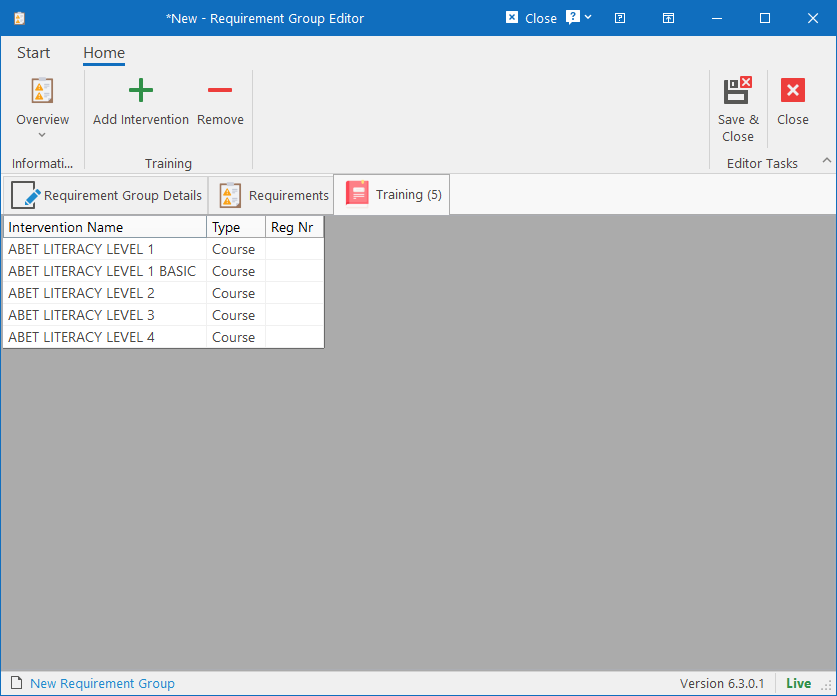
Simply use the Add Intervention and Remove buttons on the ribbon bar to manage the required training for the group.