
Adding / Editing Folders
Introduction
Documents in the Published Document Library are stored in folders. Each folder determines the online visibility of the documents within it and which people can access it.
Getting Started
To get started, in HR Manage, open the Published Documents library. There will always be a single root folder called “Home” and all other folders will either be linked to it or one of its sub-folders.
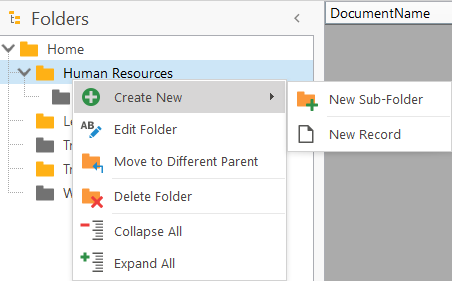
To create a new Folder, right-click on any existing folder on the left and click the Create New menu item. The new folder will be created as a sub-folder of the selected folder. To edit an existing folder, simply right-click on it and click the Edit Folder menu item.
Folder Editor
The folder editor allows you to specify the name and access details for the folder.
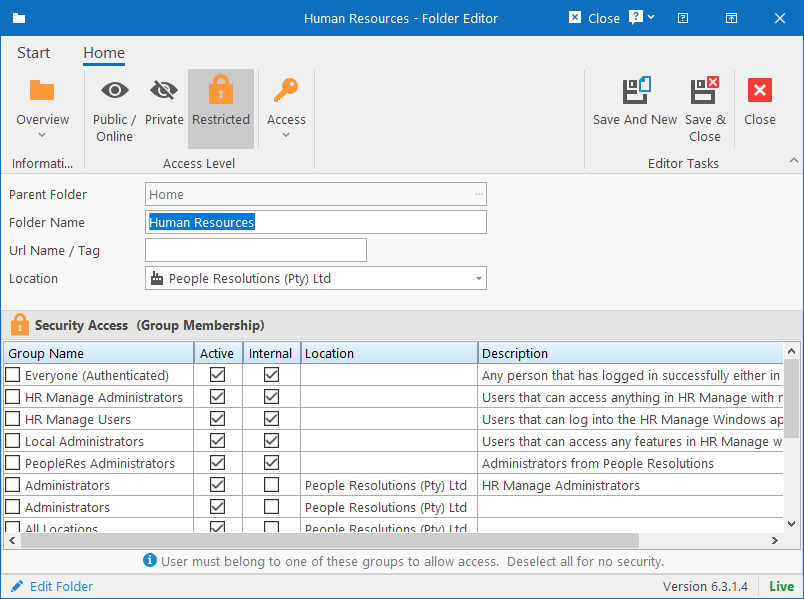
The fields here are pretty straightforward:
- Parent Folder: The parent folder that this folder belongs to.
- Folder Name: Name of the folder.
- Url Name / Tag: For future use. Can contain a name consisting only of alphanumeric characters as well as dash (-) and underscore (_). Will be used in future for building friendly urls for downloading documents.
- Location: Specify to which location the folder belongs to. If not anyone specific, set it to the Company. This might be used for allowing / denying access (see below).
- Security Access: Specify which security groups a user must belong to in order to access documents in the folder. Note that this needs to be combined with a setting in the “Access Level” settings in order to be enforced (see below).
Access Level
In the ribbon bar, there is a group called “Access Level” that determines who can view documents in the folder. The available options are as follows:
- Public / Online: Documents in the folder are accessible by all users in HR Manage Online.
- Private: Documents in the folder are only accessible through the HR Manage Desktop application.
- Restricted: Documents in the folder are accessible to users that meet a specific criteria as defined in the Access dropdown menu.
- Access to Location: If selected, then users must either belong to the Location specified in the field above or their security profile must allow for at least Read access to the location.
- Security Group Membership: If one of the options are selected, then users must belong to either at least one of the security groups selected under the Security Access section (option: “Any Security Group”) or to ALL the security groups selected (option: “All Security Groups”).