
Email Client Configuration
Introduction
The email client is used to send email notifications from HR Manage to employees. There are two types of email clients that can be defined in HR Manage:
- Email Notifications: Email notifications are sent in response to an action that occurred in HR Manage like a new leave application, an approval, completion of a workflow activity, etc. It is a simple generic message with no attachments and limited customisability.
- Email Messages (new): Email messages are emails that are sent from HR Manage that can be customised per message and contain attachments.
Clients can use our mail server settings for email notifications if they don’t already have one available. For email messages, clients should either provide us with an email account or get a premium email account. Since we can’t really control what clients attach to their emails, we can’t risk sending large emails through our accounts and then have situations where other email notifications are being delayed due to high traffic.
Configuring an Email Account
Open the “HR Manage System Configuration”, click on the Email Clients item in the menu on the left and then click Create New on the ribbon bar. The will open the Email Account Editor.
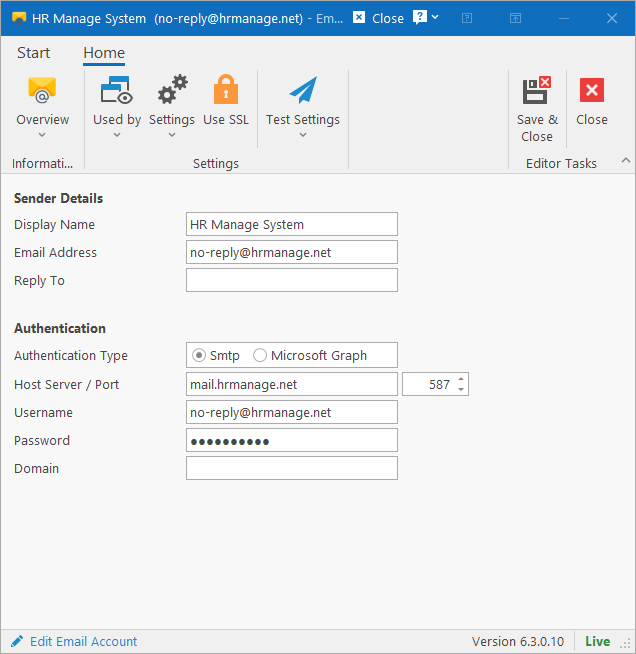
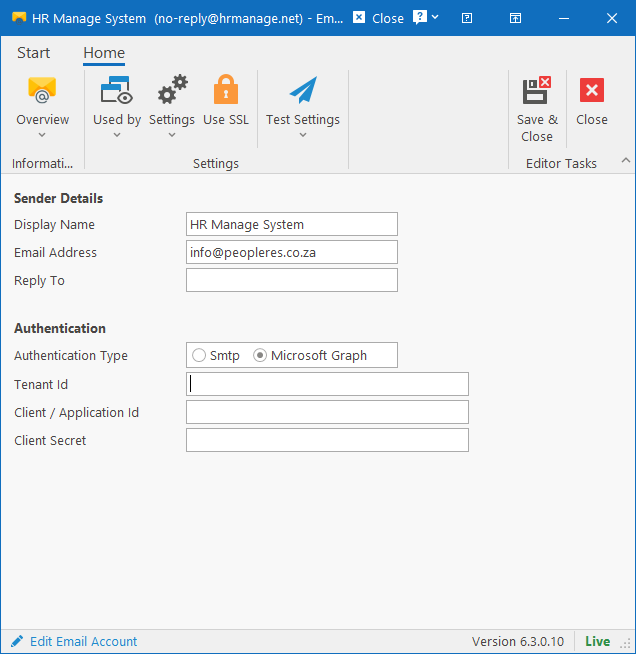
Editor
- Sender Details: Simply complete the fields as per description. If the Reply To field is empty, then the main email address will be used.
- Authentication: Specify the type of email provider to use and complete the authentication details as provided by your email provider. Based on the type, you would need to complete different fields:
- SMTP: Suitable for email notifications and sometimes for email messages depending on the provider. If we provide you with an email account, it can only be used for notifications without attachments.
- Microsoft Graph: Suitable for sending email messages through Microsoft 365, but do not use it for email notifications. There are daily and threshold limits imposed by Microsoft which makes this option unsuitable for larger clients. See the bottom of this article for more information on how to register HR Manage for Microsoft Graph.
Ribbon bar – Settings
Used By
Specify what this email account is used for: Email Notifications or Email Messages.
It is also possible to use different accounts for each module in HR Manage, but there has never really been an instance where this has been used.
Settings
- Sending method: This setting is obsolete and will be removed soon. All emails are now sent from the server automatically.
- Max Attempts: HR Manage Agent will attempt to send an email notification and if it fails, it will keep trying for the number of times specified in this field.
- Max Recipients per email: Some email providers limit the number of recipients per email. By specifying a number here, HR Manage will automatically break up emails with many recipients into multiple smaller emails before sending.
- Use SSL: Specify if the mail server uses SSL for sending emails.
- Test Settings: You can test sending an email using the settings provided.
Register HR Manage in Microsoft Graph
To enable sending emails through Microsoft Graph, see the following article (only for IT Administrators):