Apply for Leave
Getting Started
In HR Manage Online, click on the site menu button, expand the Leave / Time-off item and click on the Apply for Leave item. This will take you to the leave application page.
The leave application page is dynamic and will perform live calculations and update the Leave Planner as you make changes to the fields.
Leave Application Details
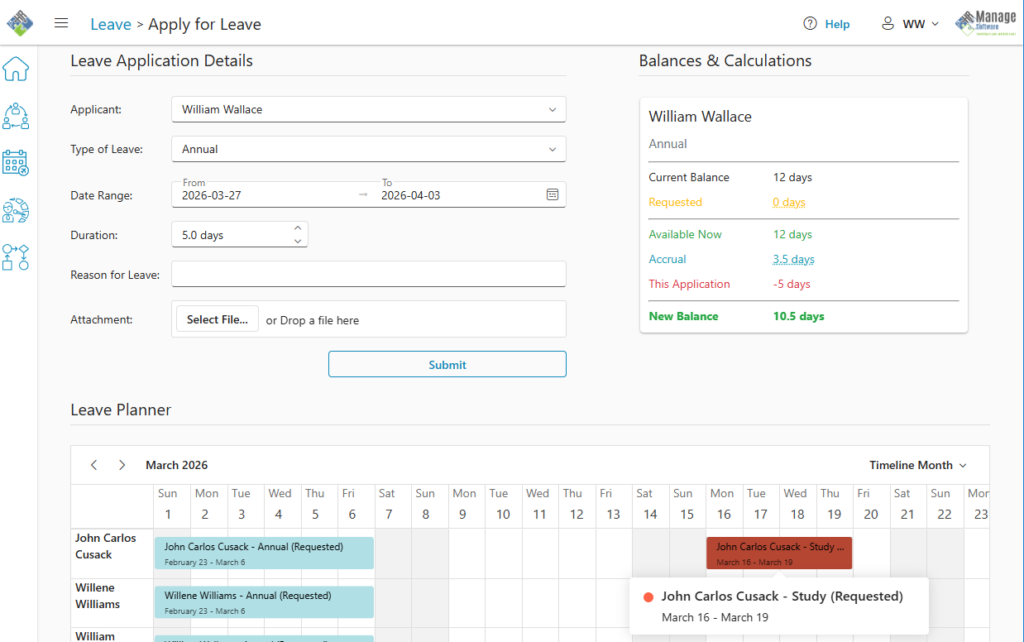
The following fields must be completed to apply for leave. Some fields may only become applicable depending on choices made on the form.
- Applicant: By default, you will be selected. If you have access to apply for leave on behalf of other people, those people will be displayed in the dropdown list.
- Type of Leave: Select the type of leave to apply for. If you’re applying for yourself, all leave types will be available and if you’re applying on behalf of someone else, only leave types that are configured as such will be available for selection.
- Date Range: Specify from when until when the leave is for. Changing this value will automatically trigger a calculation.
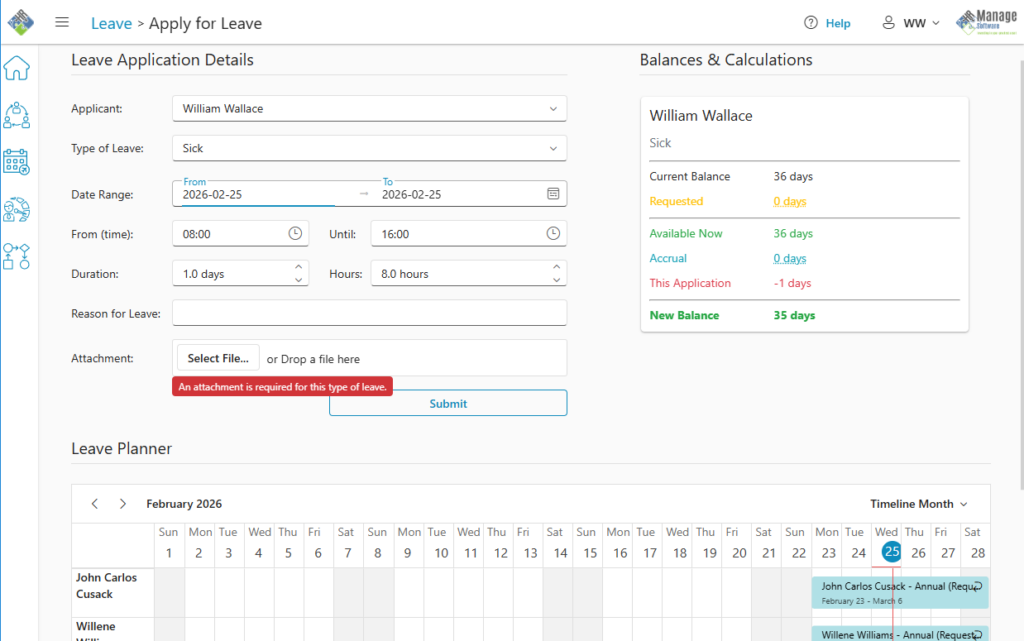
- From (time) / Until: This field will only become available for single-day applications and it allows you to calculate the duration in hours which will then calculate the exact duration in days.
- Duration: This is the number of days that will be deducted from your leave credits. Whether this field is read-only or available for editing will depend on your company’s leave configuration. If however you override the duration, you’ll need to provide a reason for specifying a custom duration and it will also be highlighted to approvers that your duration differs from the calculated duration.
- Hours: Only applicable for single-day applications. Whether this field is editable or not will depend on your company’s leave configuration.
- Reason for Leave: Specify notes or comments or reason why leave is required.
- Attachment: You can browse for a file or drop a file from Windows Explorer to serve as supporting documentation for your leave application. Only one attachment is allowed and the size must be smaller than 2mb. Certain types of leave may be configured that requires an attachment for more than X consecutive leave days taken. In that case, the system will mark the field in red.
Balances & Calculations
This block will automatically update as you complete the leave application. The block consists of the following fields:
- Applicant: The name of the applicant selected in the application will be displayed on the first line.
- Leave Type: The type of leave selected will be displayed on the second line.
- Current Balance: This will reflect your current balance in the system for the selected leave type. The current balance is the balance that is calculated from all the Completed leave applications and records in the system.
- Requested: This reflects the number of credits that is currently used by leave applications that have not yet been completed. This will include any Requested, In Progress and Approved applications.
- Available Now: This is the balance that is available now, after the Requested leave has been deducted from the Current Balance.
- Accrual: When applying for leave in the future for a type of leave that accrues monthly, the system will calculate how much extra leave you would have accrued by the end of your leave application.
- This Application: The duration of the application you are currently capturing. If you’ve overridden the duration with your own, the original calculated duration will show in brackets.
- New Balance: This is an estimate of what your new balance will be at the end this leave application.
Note that these calculations are only estimates and depending on leave rules configured by the company, can differ quite a bit. For instance, if your company has a rule that forces all Annual leave applications to first deplete any “Previous Annual Leave”, it will do so and the amount of leave credits taken from the Annual leave would be less than calculated.
Leave Planner
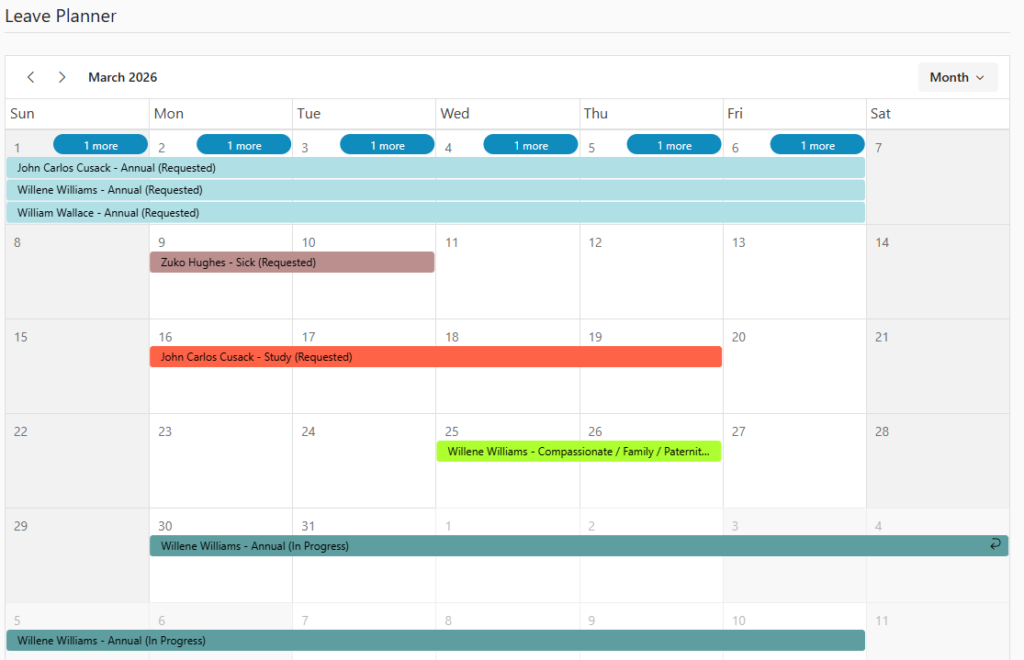
The Leave Planner allows you to see which of your co-workers also have leave planned for the period that you’re applying for. Depending on the company configuration, you might be able to also see sub-ordinates or managers in the planner.
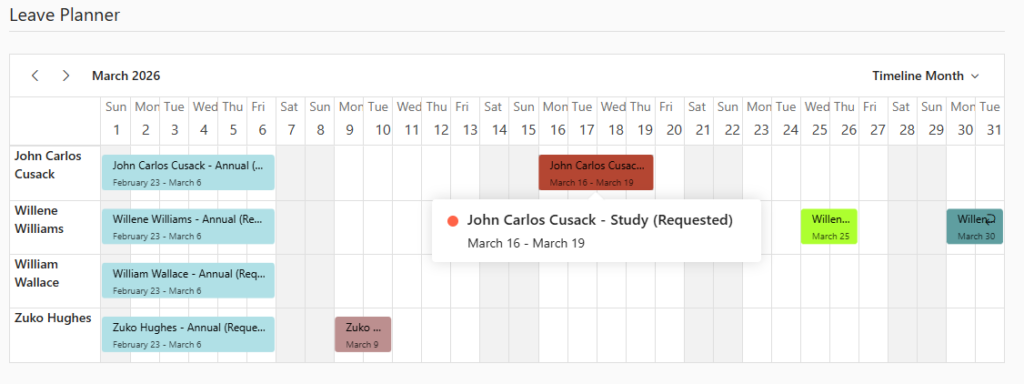
The leave planner will automatically jump to the dates you select for your leave application. You can see the applicant, type of leave, date range and status of the applications. You also have the option to switch to Month view by clicking on the dropdown in the Planner’s header and choosing Month.
Submitting the Application
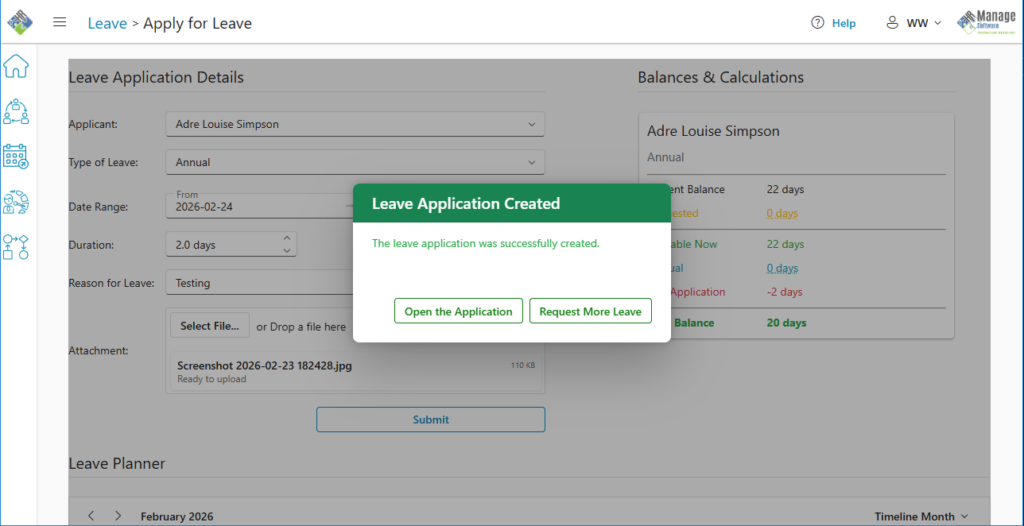
Once you are satisfied with all the details captured, you can click the Submit button to create the leave application. You’ll be prompted with a confirmation box that will ask if you want to navigate to the newly created application or if you want to create another leave application. Alternatively, you can just use the Site menu to navigate away to any other area of the system.